
Setup Scenario Demo
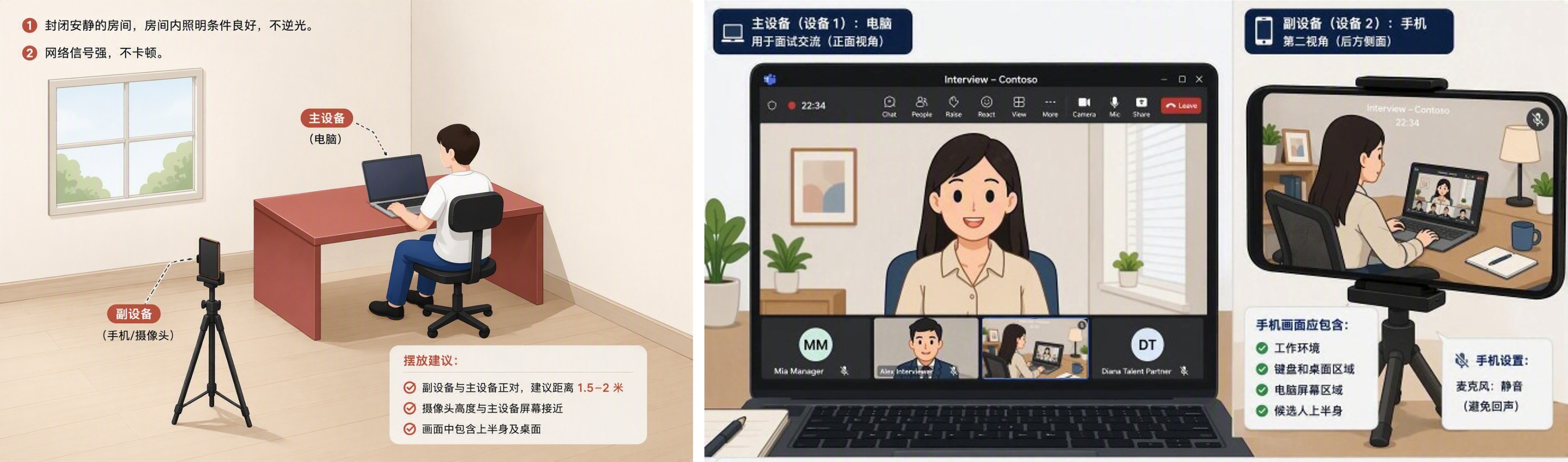
Test link to join the Teams meeting
您可以使用下面的测试链接尝试完成上述步骤。该链接不会将您带入真实的面试。最终您可以进入虚拟大厅,但不会有人批准您加入会议的请求。
You can use the test link below to try completing the steps above. This link will not take you into a real interview. You can proceed to the virtual lobby, but no one will approve your request to join the meeting.
MS Teams Meeting Link for your test: https://teams.microsoft.com/meet/257327181655792?p=M9vP7csgB9e6gmIaSf
Joining on Desktop

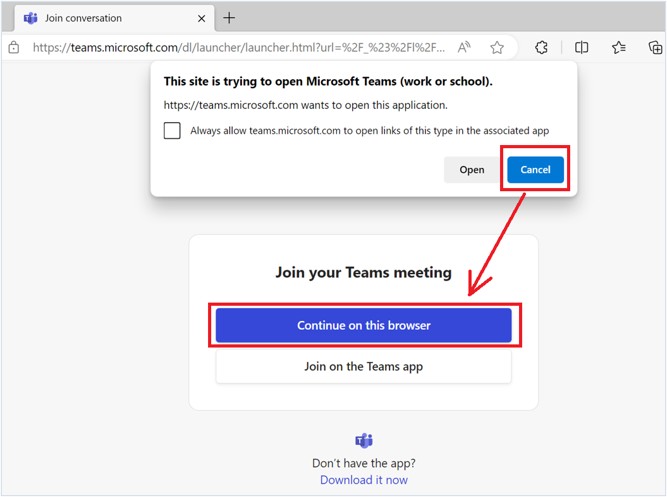
Click 'Continue on this browser' to join on the web. (If the browser asks whether to open the MS Teams app, click “Cancel”)
选择在此浏览器上继续,在浏览器上直接启动会议。(如果浏览器弹出是否启动Teams app的提示,请点击“取消”)

Click 'Allow' to let Microsoft Teams use your mic and camera for calls and meetings on this browser.
点击“允许”,让Teams可以访问麦克风及摄像头

Next, type your name.

Turn on your camara and set your background as blur.
设置打开摄像头并选择是否对背景进行虚化

Turn microphone, and choose your audio device, speaker, and camera from the device setting.

Click 'Join Now' to join the meeting
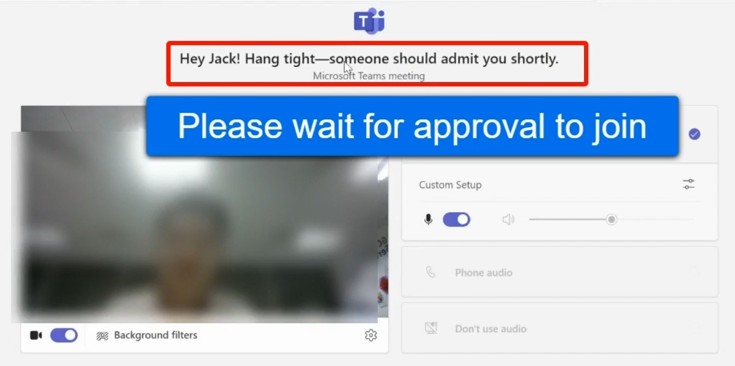
Next, you will enter the virtual lobby . The message “Next, you will enter the virtual lobby . The message “Waiting for approval to join” confirms that setup is complete; simply wait for the interviewer to approve your entry.
随后,您将进入虚拟会议大厅。当看到“等待审批入会”的提示时,即表示所有配置已完成,接下来只需等待面试官同意你加入。”
Joining on Mobile
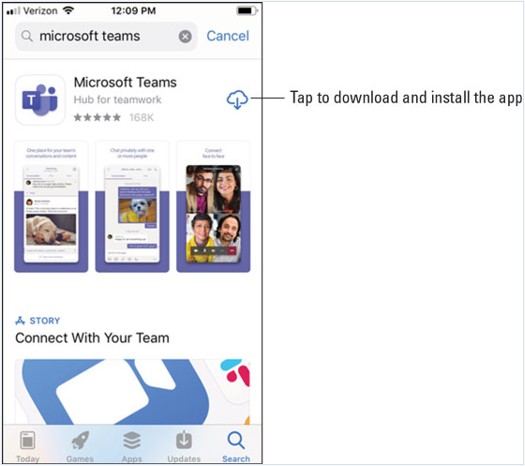
Download the Microsoft Teams app from your mobile app store in advance. You only need to install it — no Teams account is required, and you will not need to sign in for the interview.
请提前在手机应用商店下载微软 Teams App。只需下载安装,无需创建 Teams 账号,面试时也不需要账号登录。
点击面试邀请中的Teams会议链接,在手机浏览器中打开链接
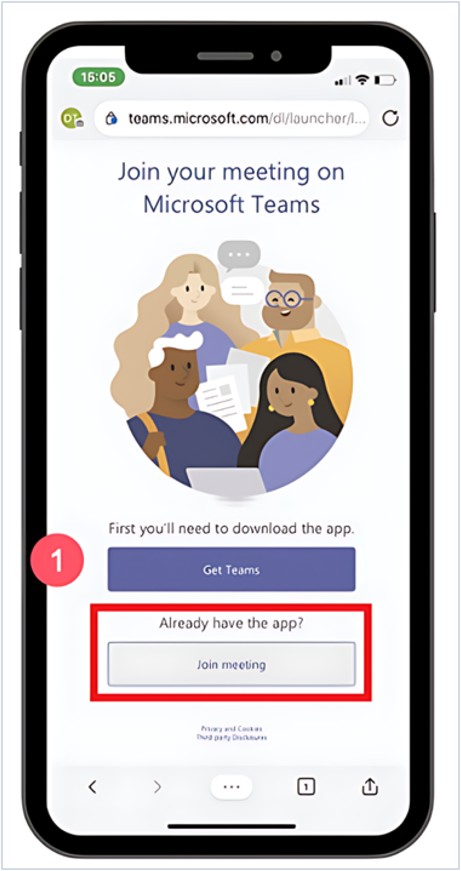
Tap Join meeting in the invitation to open the Teams app.
在会议邀请中点击“立即加入会议”打开 Teams 应用。
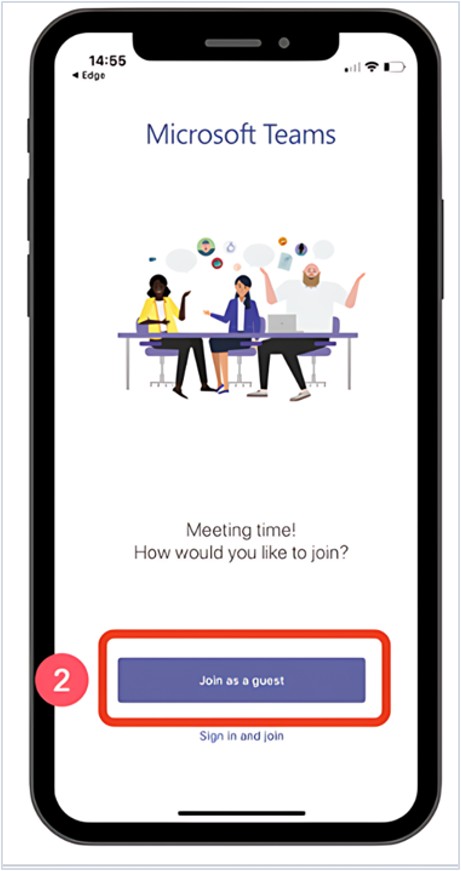
We recommend joining as a guest — no sign-in required.
建议以访客身份加入(无需登录)。
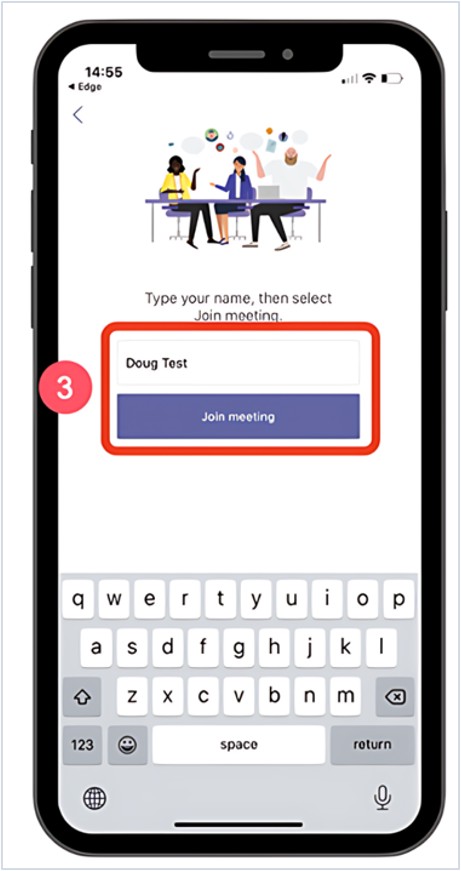
Enter your name to join the meeting.
输入姓名,并加入会议。
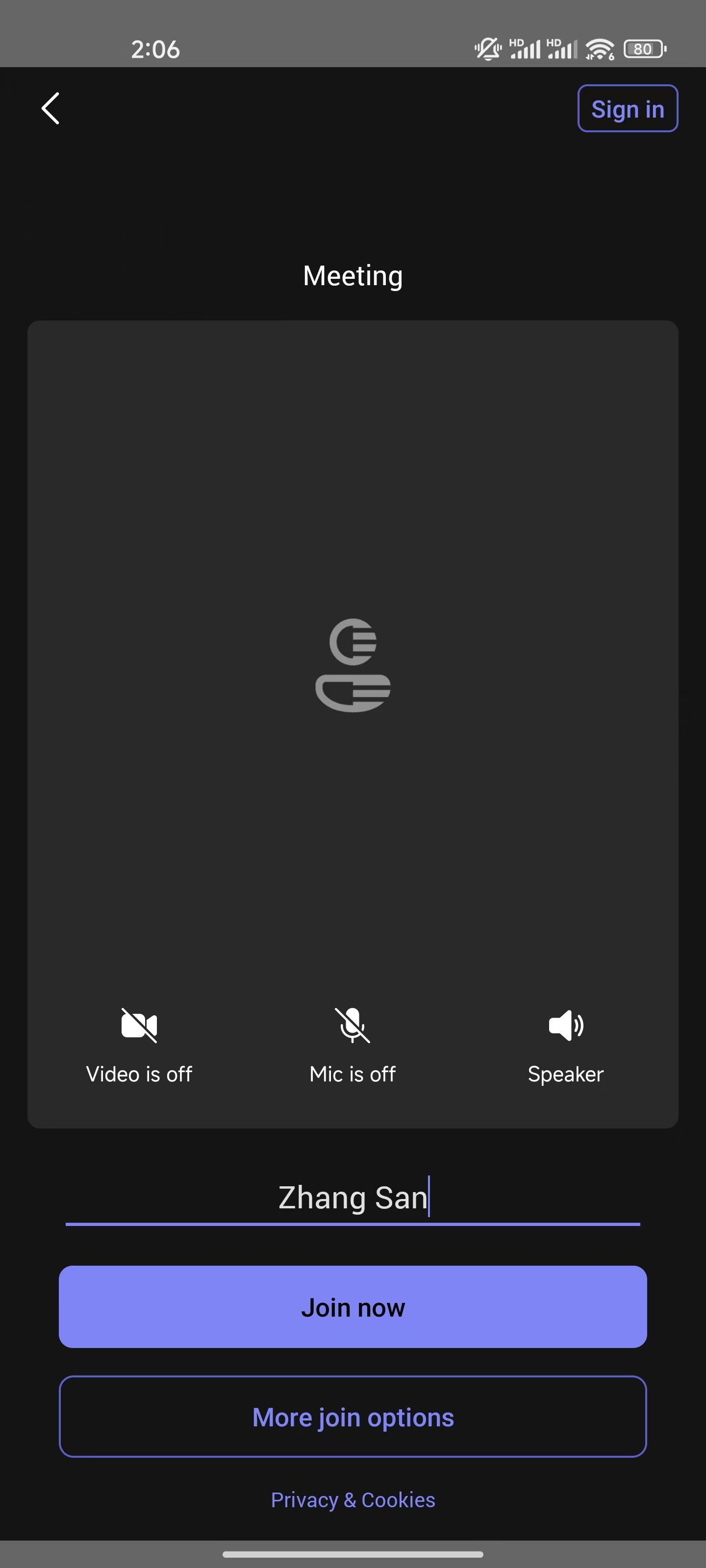
Turn on your video, turn off microphone and speaker, then tap Join now to enter the meeting.
打开摄像头,关闭麦克风和话筒,然后点击“立刻加入会议”。
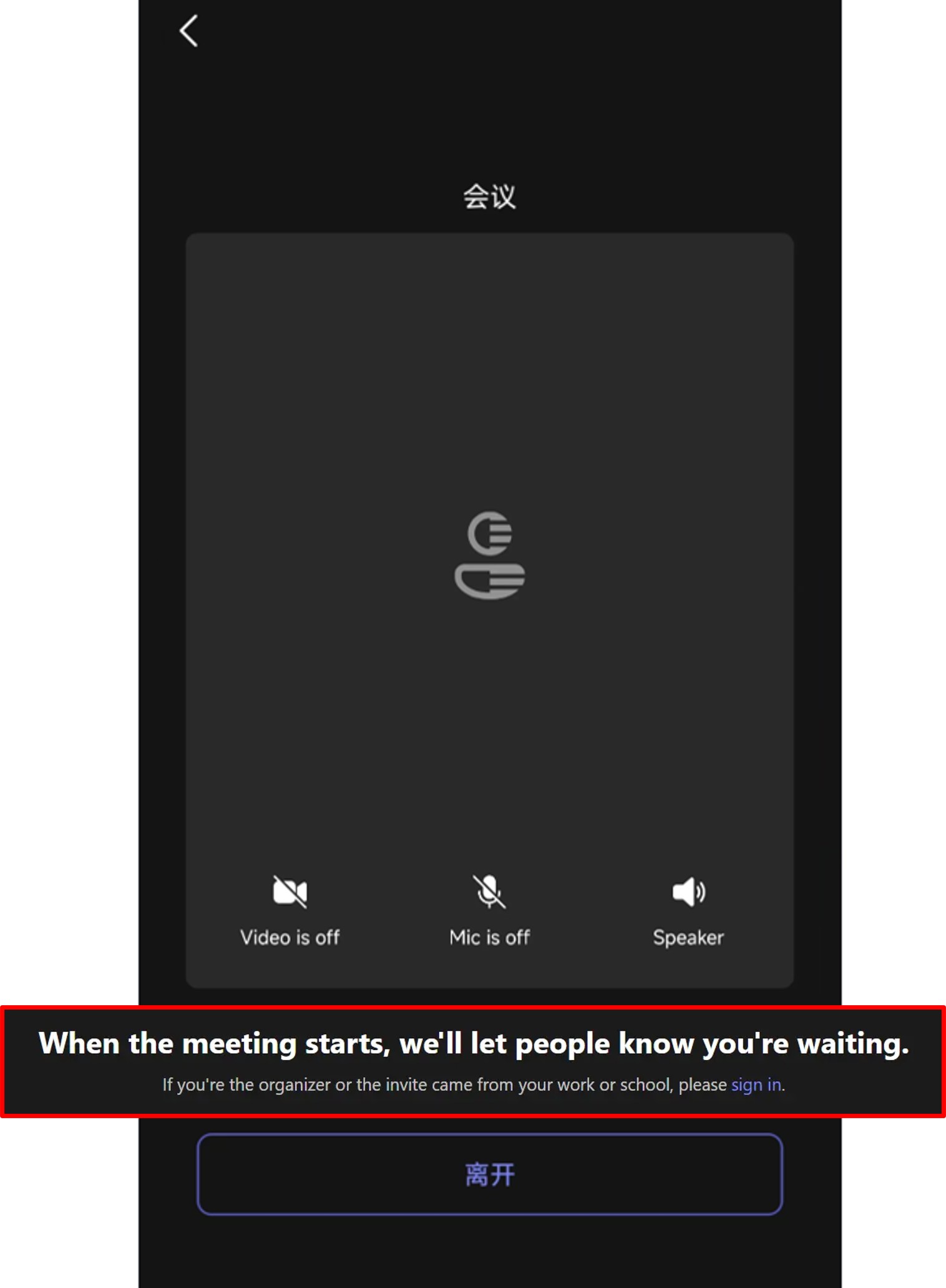
Next, you will enter the virtual lobby . The message “Waiting for approval to join” confirms that setup is complete; simply wait for the interviewer to approve your entry.
随后,您将进入虚拟会议大厅。当看到“等待审批入会”的提示时,即表示所有配置已完成,接下来只需等待面试官同意你加入。
FAQ/常见问题
Q. 加入Teams会议过程中,遇到了登陆错误问题怎么办?
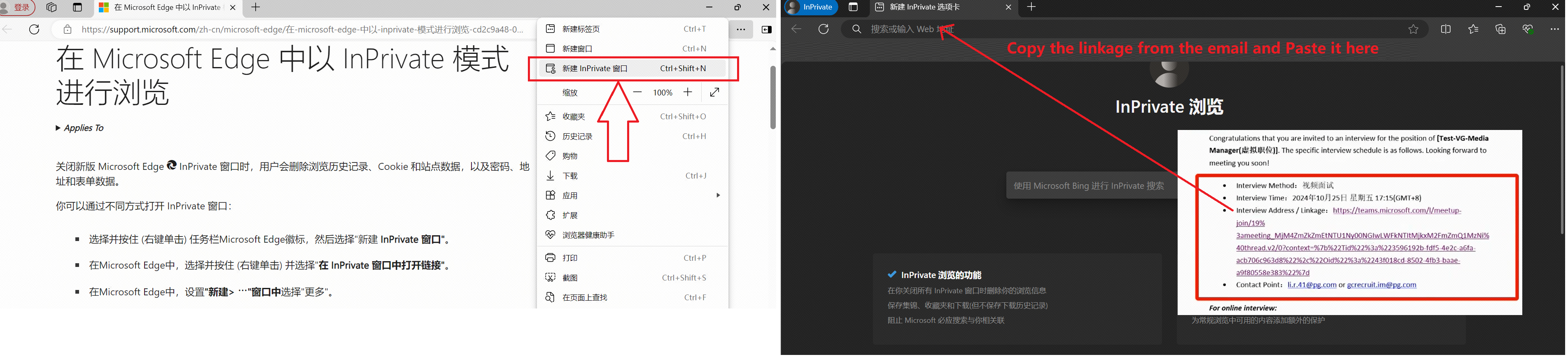
A. 无需登陆Teams账号也可以加入Teams会议的,我们建议您直接以guest身份加入会议,同时为了避免您浏览器中的缓存带来的影响,建议您参考以下截图,在浏览器中”新建InPrivate窗口“后再访问Teams会议链接。
Q. What should I do if I encounter a login error when joining a Teams meeting?
A. You do not need to sign in your personal Teams account to join the Teams meeting. We recommend joining the meeting as a guest. To avoid issues caused by browser cache, please refer to the screenshots below and open a new "InPrivate window" in your browser before accessing the Teams meeting link.
A. 无需登陆Teams账号也可以加入Teams会议的,我们建议您直接以guest身份加入会议,同时为了避免您浏览器中的缓存带来的影响,建议您参考以下截图,在浏览器中”新建InPrivate窗口“后再访问Teams会议链接。
Q. What should I do if I encounter a login error when joining a Teams meeting?
A. You do not need to sign in your personal Teams account to join the Teams meeting. We recommend joining the meeting as a guest. To avoid issues caused by browser cache, please refer to the screenshots below and open a new "InPrivate window" in your browser before accessing the Teams meeting link.